
Prepare the sheet
One row per item, one heading row on top. .xlsx, .xls and .csv files work. The app guesses each column from its heading; you can change any guess before importing.
| Column | Headings it understands | Example |
|---|---|---|
| Item name * | Item, Name, आयटम, नाम | Toor Dal 1 kg |
| Price * | Price, Rate, भाव, दर: the selling price | 172 |
| MRP | MRP, एमआरपी | 185 |
| Purchase / cost price | Purchase, Cost, Buying, खरीद, खरेदी | 148 |
| Wholesale price | Wholesale, Dealer, Thok, थोक, घाऊक | 165 |
| Unit / per | Unit, UOM, Per, प्रति, इकाई | Packet, kg, Box |
| Category / section | Category, Section, Group, श्रेणी, विभाग | Dal & Pulses |
| Stock | Stock, Qty, Opening, स्टॉक, मात्रा | 35 |
| Barcode | Barcode, EAN, SKU, Code, बारकोड | 8901234567890 |
| HSN | HSN, SAC | 0713 |
| GST % | GST, Tax, जीएसटी | 5 |
| Company / brand | Company, Brand, कंपनी, ब्रांड | Added to the name |
- No stock column? Items come in as unlimited stock, so scanning is never blocked. Stock starts counting when goods come in.
- No price in a row? The item is imported at ₹0; the counter asks for the price at the first sale.
- No HSN / GST column? Items get no HSN and 0% GST; set them later in each item.
Sample sheet
Start from the demo shop's list: 120 kirana items with section, unit, MRP, price, purchase price, stock, HSN and GST. Replace the rows with your own items and keep the headings.
Download the sample price list (.xlsx)
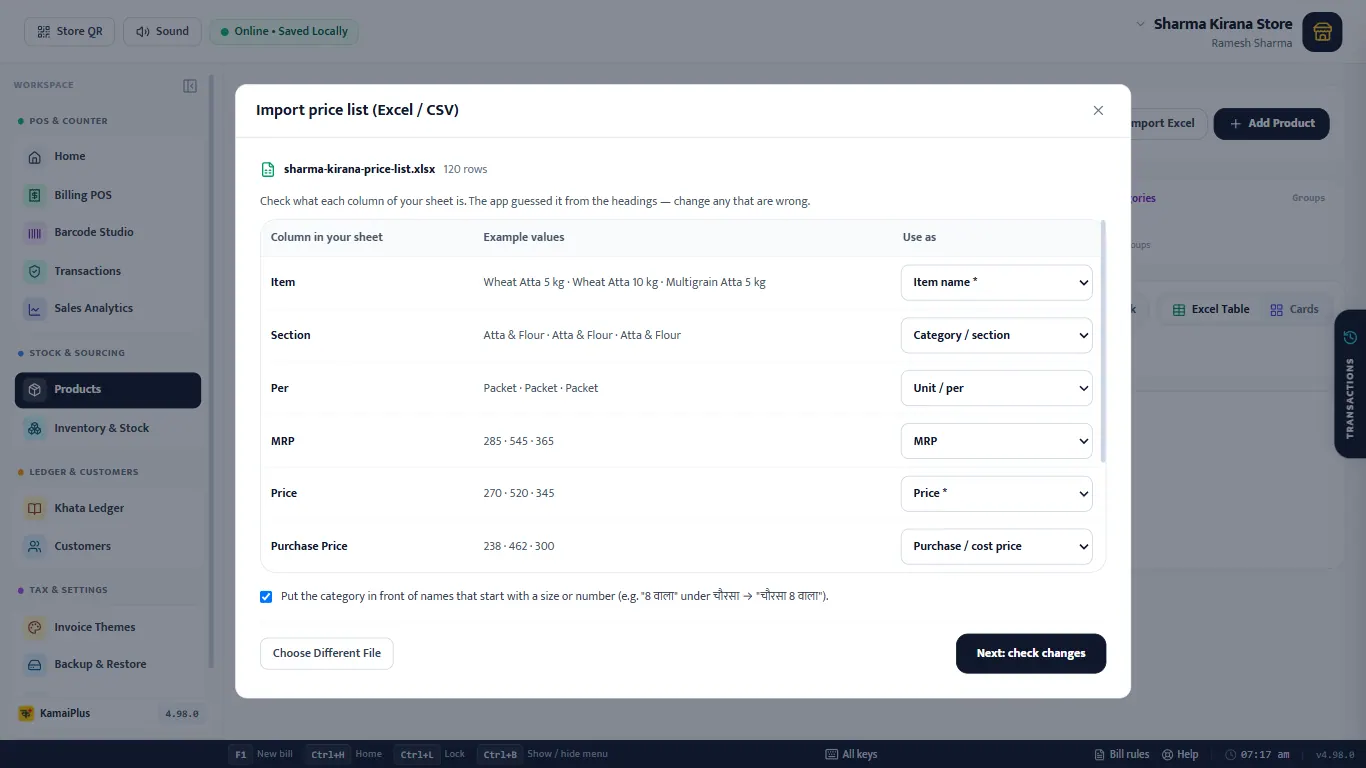
Check the columns
- Open Products → Import Excel (or Inventory → Excel Import) and choose the file.
- Each column of your sheet is listed with example values and the role the app picked. Change a wrong role in its dropdown, or set it to ignore.
- Click Next: check changes.
Preview before anything is saved
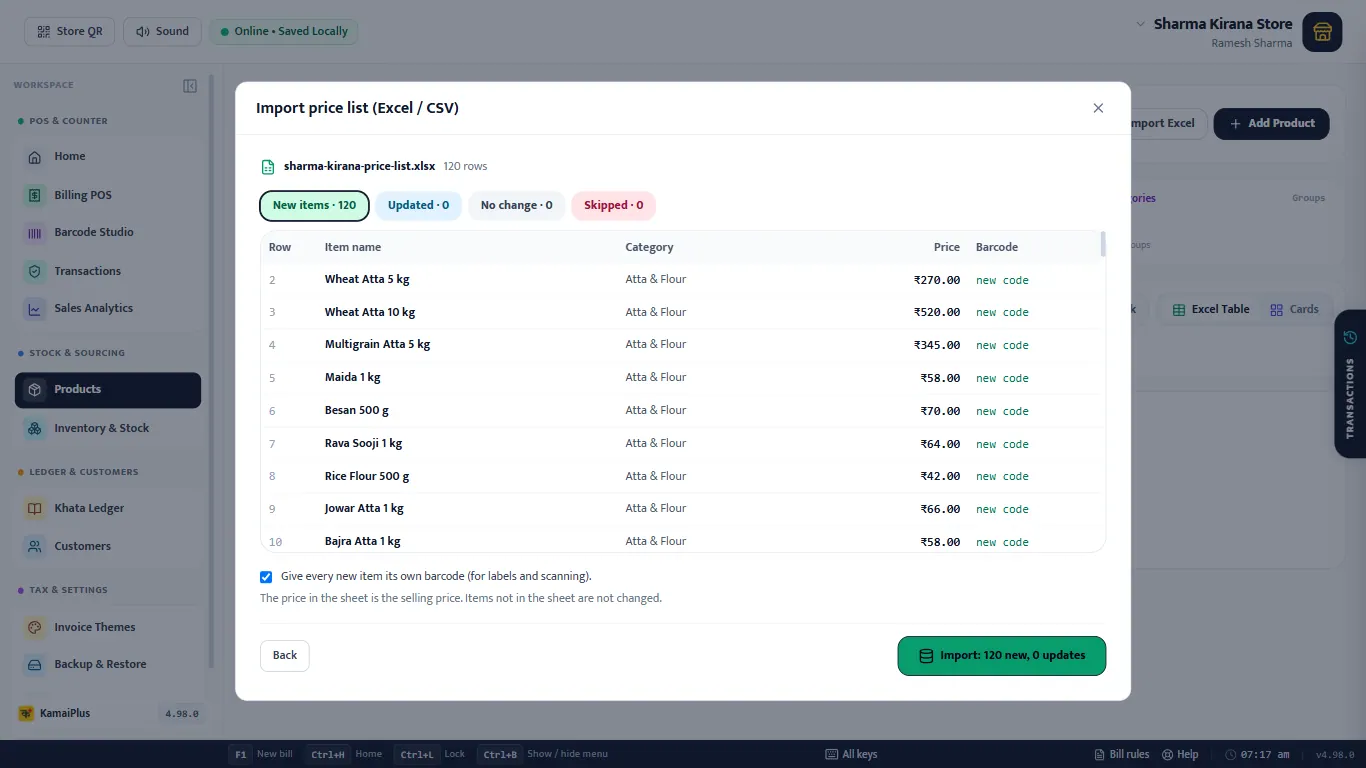
Nothing is saved until you click Import. Back returns to the columns.
Import and done
The done screen counts new, updated, unchanged and skipped items, how many got a new barcode, and how many have no price yet. Categories are made from the section column. Print labels for these items goes straight to Barcode Studio; Done & View Catalog opens Products.
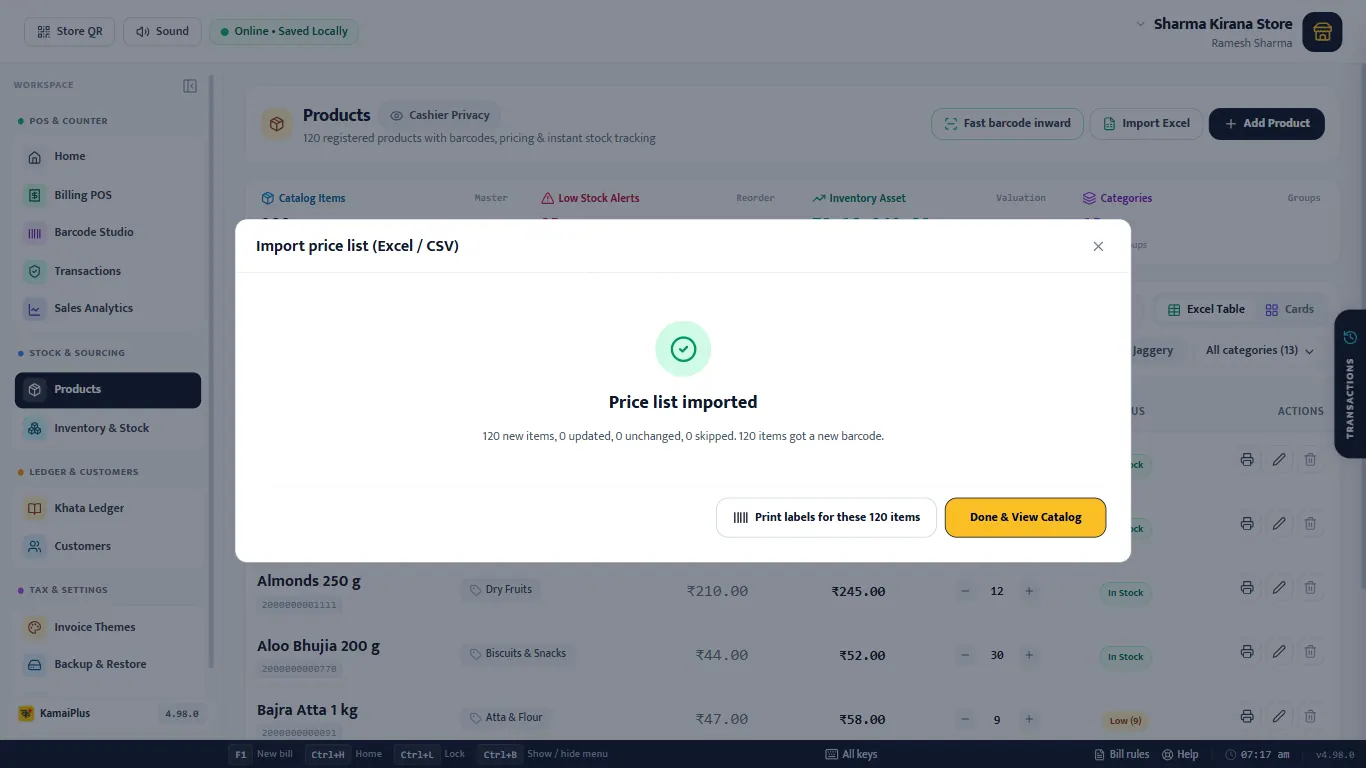
Every new item without a barcode gets its own store code (EAN-13 starting with 200), saved on the item, so a printed label always scans.
Update prices later
Change prices in the same sheet and import it again. Rows are matched to saved items by barcode or name, and only changed fields are written: the preview shows them as Updated. Items missing from the sheet are left alone, and stock is never overwritten.
The supplier raises Toor Dal 1 kg from ₹172 to ₹178. Change that one cell and import again: the preview says Updated · 1, No change · 119.
Print labels
Barcode Studio has the last import ready under Last Excel import: new and re-priced items. Choose copies and print. Barcode labels and the label printer →