
Open the designer
Menu → Invoice Themes (under Tax & Settings), or Customize Bill Layout & Themes in Settings → Invoice & Bill Rules. If you do not see it, turn on Settings → Features ON / OFF → Invoice Themes.
The shop's name, address, phone, GSTIN, logo and UPI ID come from Settings → Store & GST Profile. Change them there.
The designer
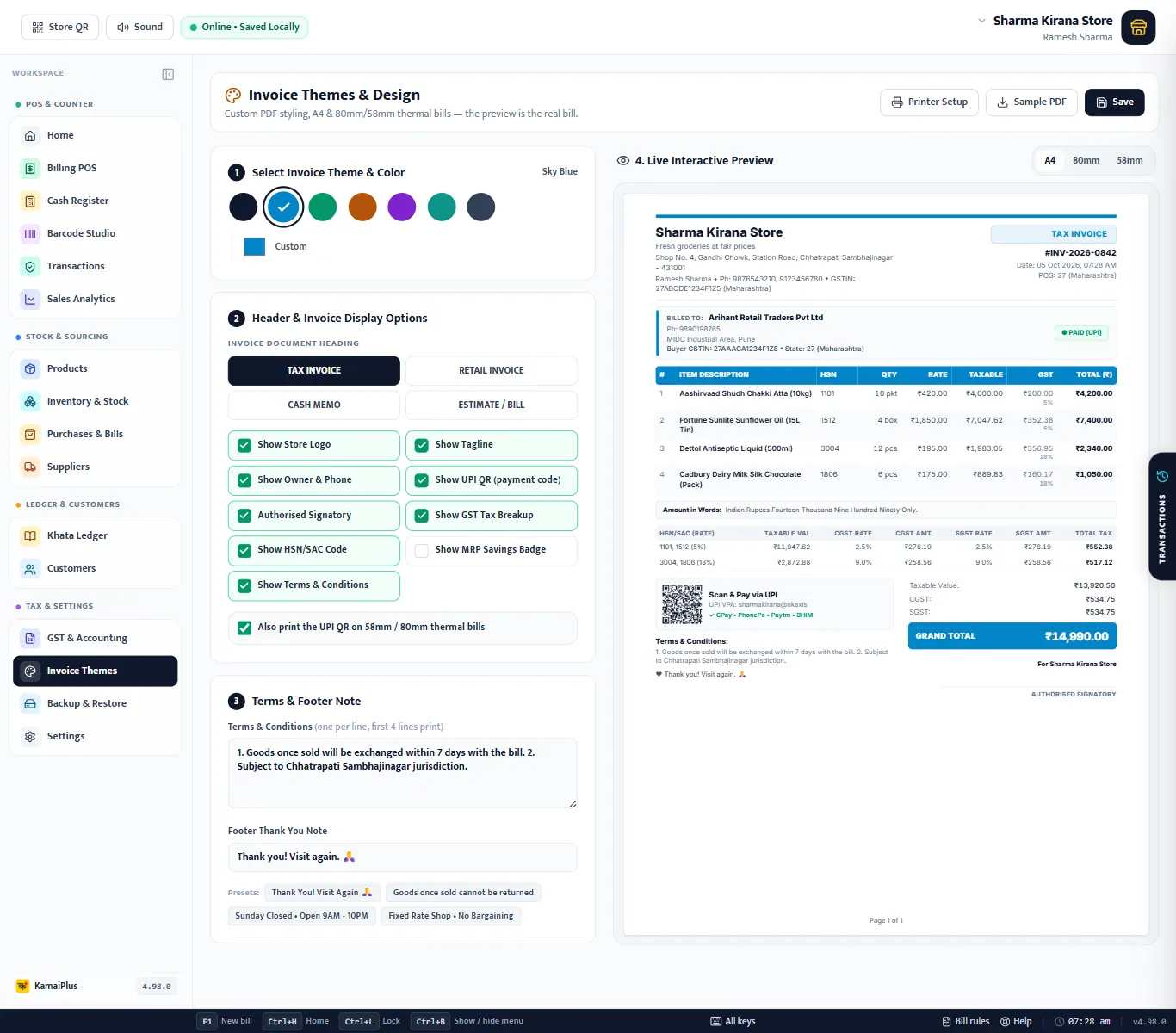
- 1Theme colour: Navy Slate, Sky Blue, Emerald Green, Terracotta Amber, Royal Purple, Teal or Charcoal. The name of the chosen one shows on the right.
- 2Custom: any colour, for your brand.
- 3Invoice Document Heading: Tax Invoice, Retail Invoice, Cash Memo or Estimate / Bill.
- 4Display options: what the bill shows (table below).
- 5Also print the UPI QR on 58mm / 80mm thermal bills (shown when the UPI QR is on).
- 6Terms & Conditions: one per line; the first 4 lines print.
- 7Footer Thank You Note.
- 8Presets: one click fills a common footer.
- 9Preview paper: A4, 80mm or 58mm.
- 10Printer Setup: the bill printer window.
- 11Sample PDF: saves the sample bill as a PDF to check or send.
- 12Save: nothing changes on bills until you save.
- 13Live Interactive Preview: every click changes it at once.
Display options
| Option | On the bill | Default |
|---|---|---|
| Show Store Logo | Your logo from the Store Profile, top left. | On |
| Show Tagline | The line under the shop name, e.g. "Fresh groceries at fair prices". | On |
| Show Owner & Phone | The owner's name and phone numbers. | On |
| Show UPI QR (payment code) | "Scan & Pay via UPI" with a QR for the bill amount, from the UPI ID in Settings. | On |
| Authorised Signatory | "For <shop>" and a line to sign. | On |
| Show GST Tax Breakup | The table of taxable value, CGST and SGST (or IGST) per rate. | On |
| Show HSN/SAC Code | The HSN column on each line. | On |
| Show MRP Savings Badge | "You saved ₹… on this bill": MRP minus price, plus discounts. | Off |
| Show Terms & Conditions | The terms at the bottom. | On |
No UPI ID saved? The designer says "No UPI ID saved yet, so no QR prints", with a link to add it in Settings.
Terms and footer
Example: the demo shop
Terms: 1. Goods once sold will be exchanged within 7 days with the bill. 2. Subject to Chhatrapati Sambhajinagar jurisdiction.
Footer: Thank you! Visit again. 🙏
The same two boxes are in Settings → Invoice & Bill Rules. Whichever you save last is used.
Thermal bills (80 mm and 58 mm)
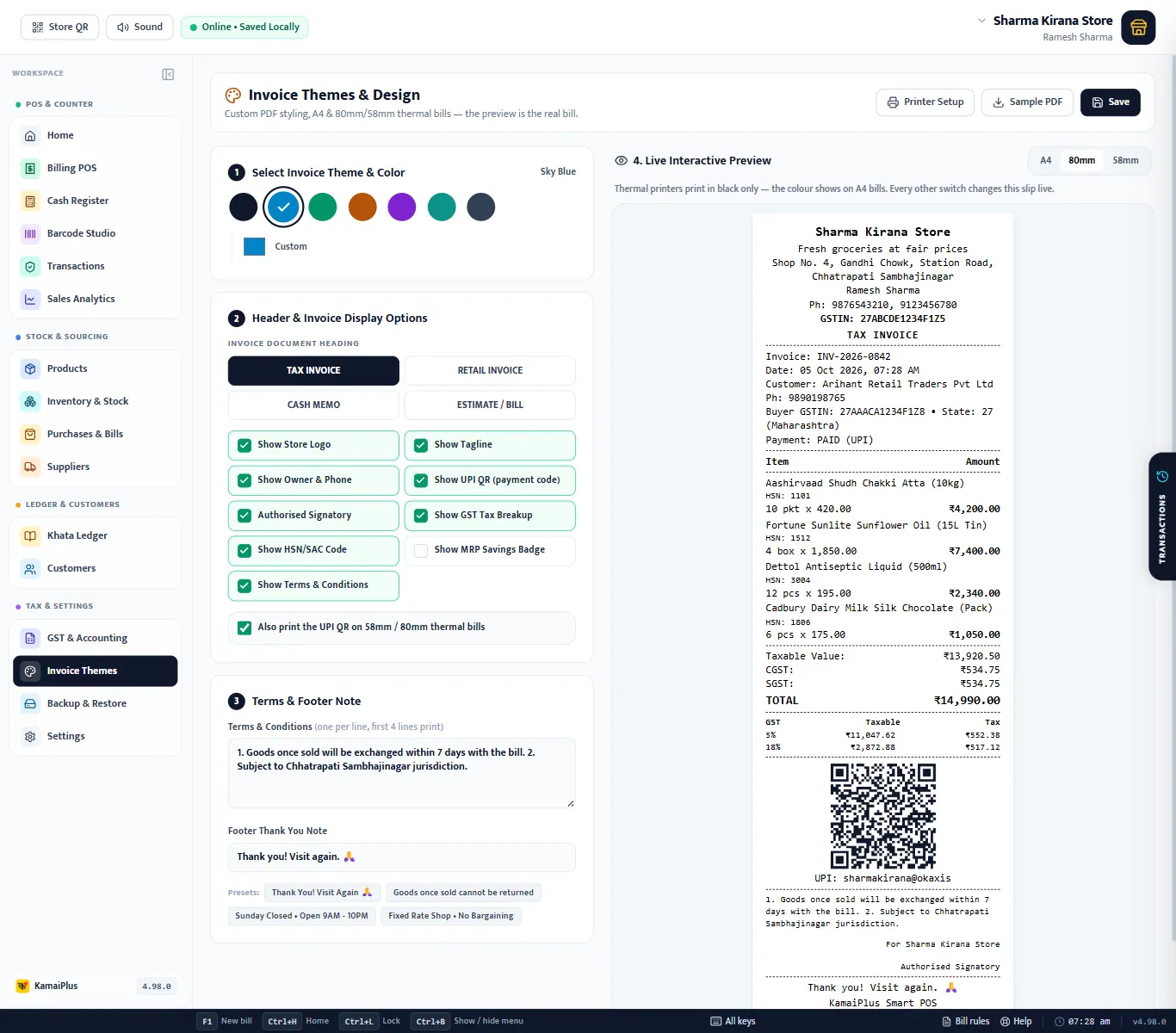
- Thermal printers print in black only: the colour shows on A4 bills and PDFs. Every other switch changes the receipt.
- The UPI QR prints on thermal bills only when Also print the UPI QR on 58mm / 80mm thermal bills is ticked.
- The bill size used at the counter is set in the bill printer window, not here.
Save and sample PDF
- Click Save. "Invoice theme & options saved. Every new print and PDF uses them."
- Click Sample PDF and Open PDF to see the result as a file.
- Print one real bill on your printer to check.
Bills already made are not changed: a reprint uses the current theme.