
The Backup & Restore page
Menu → Backup & Restore (under Tax & Settings), or Backup at the top of Settings.
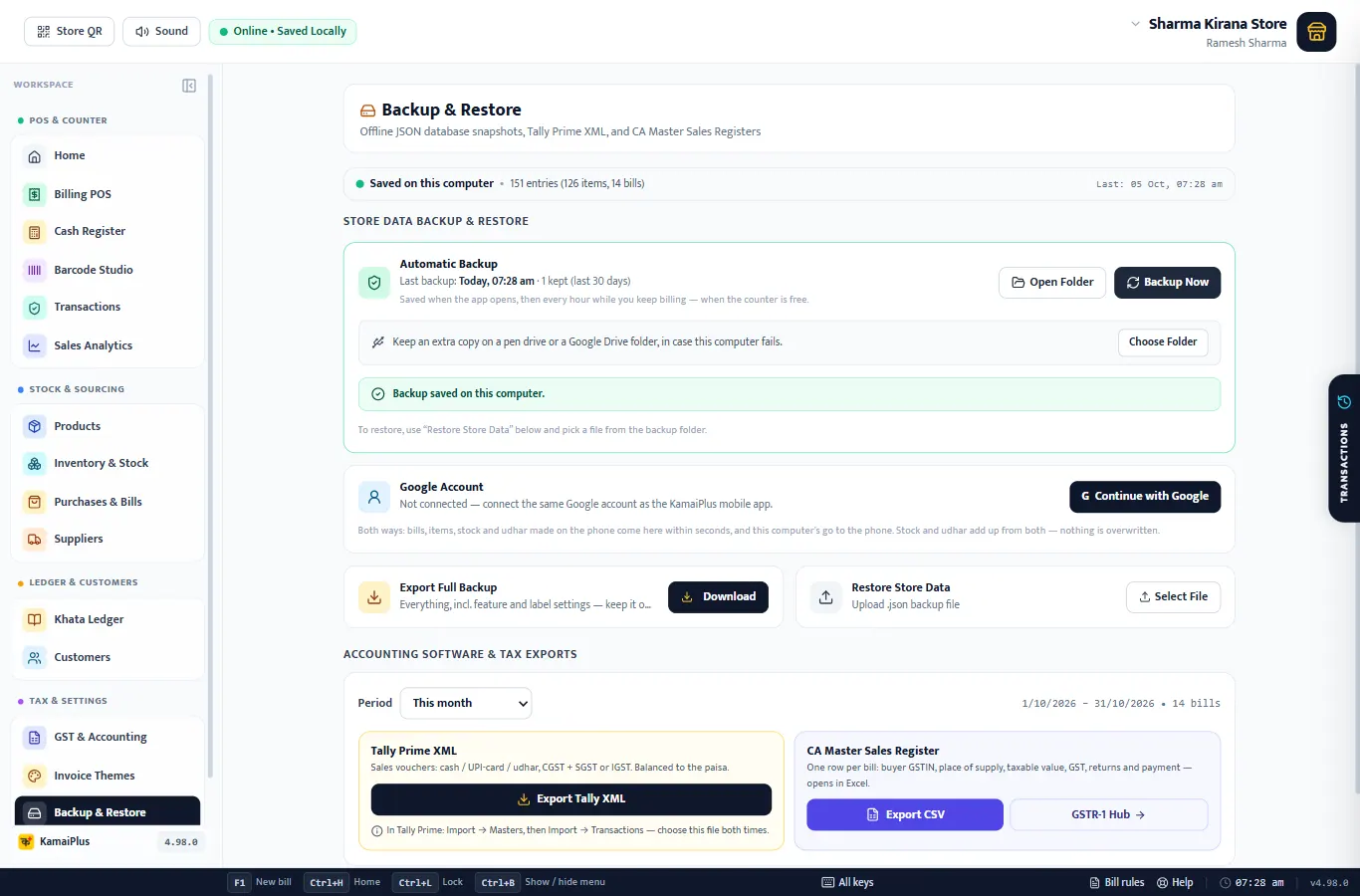
- 1Saved on this computer: how many entries, items and bills the shop has.
- 2Automatic Backup: the last backup and how many are kept.
- 3Open Folder and Backup Now.
- 4Extra copy: a pen drive or Google Drive folder (below).
- 5Google Account: for the KamaiPlus mobile app (beta). Not needed for backups.
- 6Export Full Backup: download one file with everything.
- 7Restore Store Data: bring a backup file back.
Below these are the Tally Prime XML and CA sales register exports: see Sales reports and GST filing.
Automatic backup
- The day's backup file is saved about two minutes after the app opens.
- Then, while bills, items or khata change, it is refreshed at most once an hour, at a moment when nobody is typing at the counter. In a non-stop rush it still runs once the file is two hours old. If nothing changed, nothing is written.
- Files are in Documents\KamaiPlus\Backups, one per day, named KamaiPlus_AutoBackup_<shop>_<date>.json. The newest 30 are kept; older ones are deleted.
- Backup Now saves one at once, for example before you change many prices.
The shop opens at 9:00: the backup is saved by about 9:02. Bills all day: it is refreshed about every hour. The disk fails at 8 pm: at most about an hour of bills is lost, and the pen drive copy is still safe even if the whole PC is gone.
Add an extra copy
- Plug in a pen drive, or install Google Drive for desktop so your Drive is a folder on the PC.
- On Backup & Restore, next to "Keep an extra copy on a pen drive or a Google Drive folder", click Choose Folder and pick it.
- It now says Extra copy: and the folder. Every backup is copied there too.
If the pen drive is unplugged, it says (not connected) and billing goes on; the copy resumes when it is back. Change picks another folder; ✕ stops the extra copy.
Export a full backup
Export Full Backup → Download saves one .json file with everything, including the feature and label settings. Keep it on a pen drive, or send it to yourself. It is the same kind of file as the automatic backups.
Restore
- Click Restore Store Data → Select File and pick a backup file (from Open Folder, the pen drive or a download).
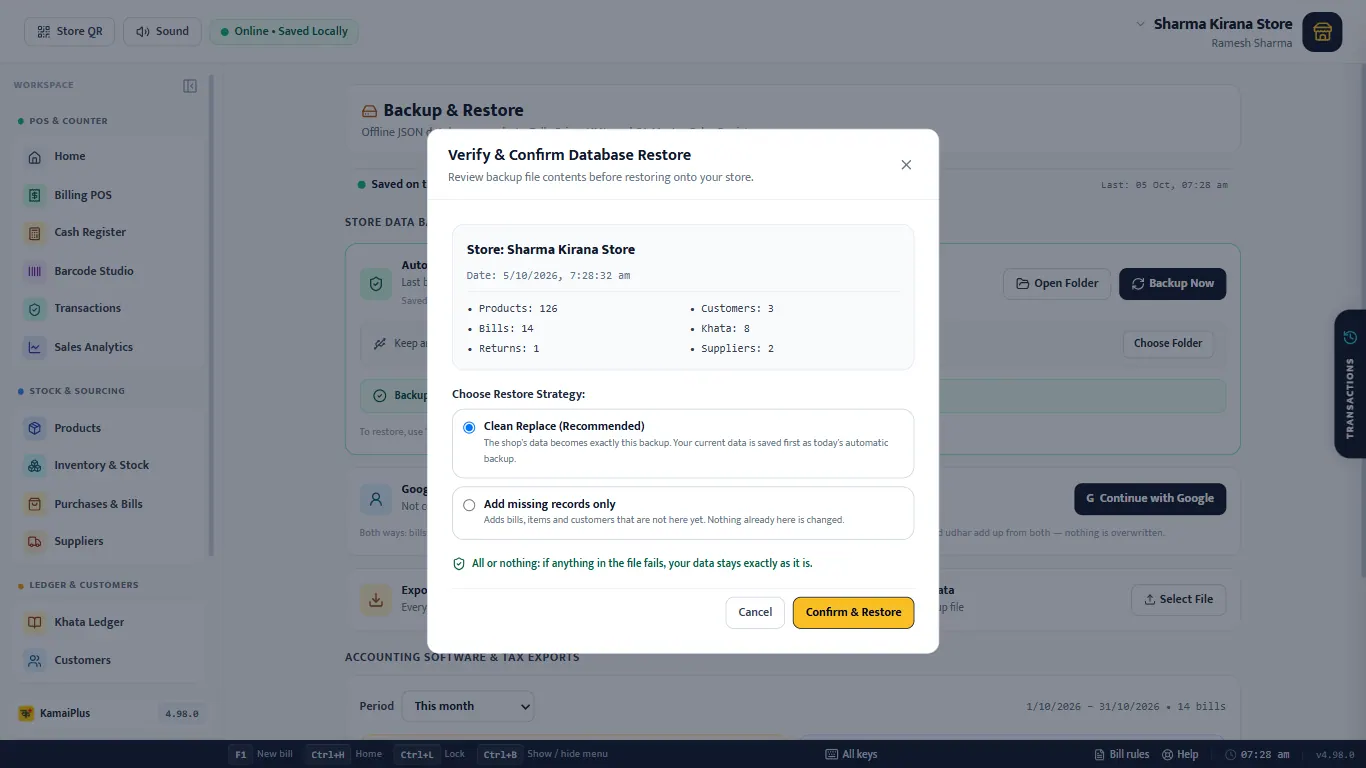
- The app reads the file first and shows what is in it.
- Choose how to restore, then Confirm & Restore. The app reloads with the restored data.
| Choice | What happens | Use it when |
|---|---|---|
| Clean Replace (Recommended) | The shop's data becomes exactly this backup. Today's data is first saved as an automatic backup. | Setting up a new PC, or going back to a known good day. |
| Add missing records only | Adds bills, items and customers that are not here yet. Nothing already here is changed. | Some bills or items were deleted by mistake. |
A restore is all or nothing: if anything in the file fails, your data stays exactly as it was.
Move to a new PC
- On the old PC: Backup Now, then copy the newest file from Open Folder to a pen drive (or use your extra copy).
- Message us on WhatsApp to move your licence to the new computer.
- Install KamaiPlus on the new PC and activate it.
- Restore Store Data → the file → Clean Replace.
- Set the bill printer and label printer again: printer choices are saved per computer.