
Before you start
- Install the printer's Windows driver from its maker and print one Windows test page.
- Know your paper: a 58 mm roll (2 inch), an 80 mm roll (3 inch), or A4 sheets on an office printer.
- A barcode label printer (TSC, Zebra, TVS LP and similar) is not a bill printer. Set it up in Barcode labels and the label printer.
The bill printer window
Open it from any of these places:
- Billing POS: the ⚙ button next to the Silent pill at the top of the bill.
- The Printer: status at the bottom right of every screen (this opens the Printers window, which also has the label printer).
- Invoice Themes → Printer Setup.
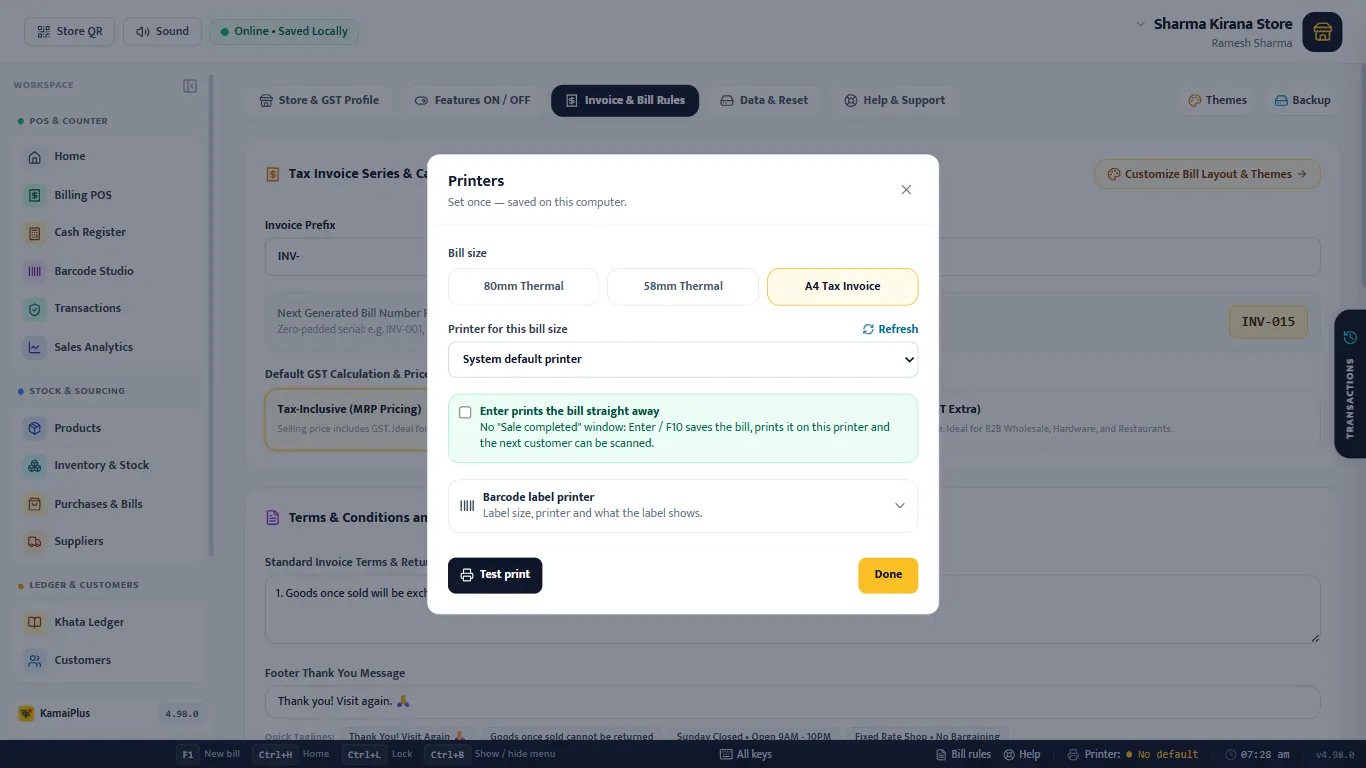
- 1Bill size: 80mm Thermal, 58mm Thermal or A4 Tax Invoice. Pick the paper that is loaded.
- 2Printer for this bill size: the printer for that size. System default printer means Windows' default. A4 and thermal remember their own printer.
- 3Refresh: reads the printer list again after you plug one in.
- 4Enter prints the bill straight away: see below.
- 5Barcode label printer: opens the label settings (Printers window only).
- 6Test print: prints a sample bill with your shop's name. Check that nothing is cut at the sides and the text is clear. Done closes the window; every change is already saved.
- 7The Printer: status. Here it is amber, No default: no printer is chosen and Windows has no default.
Print straight away
At a busy counter you do not want the Sale completed window after every bill. Turn on Enter prints the bill straight away in the window above, or click the Silent: OFF pill on the bill so it reads ⚡ Silent: ON. Both are the same switch.
- Scan the items.
- Press Enter on the empty search box (or F10).
- The bill is saved and printed on the chosen printer with no window, and the cursor is back in the search box for the next customer.
If no printer is chosen yet, turning Silent on first opens the bill printer window, so bills never go to the wrong printer.
Settings → Printer Setup
The same choices, with two more, are in Settings → Invoice & Bill Rules → Printer Setup (this computer).
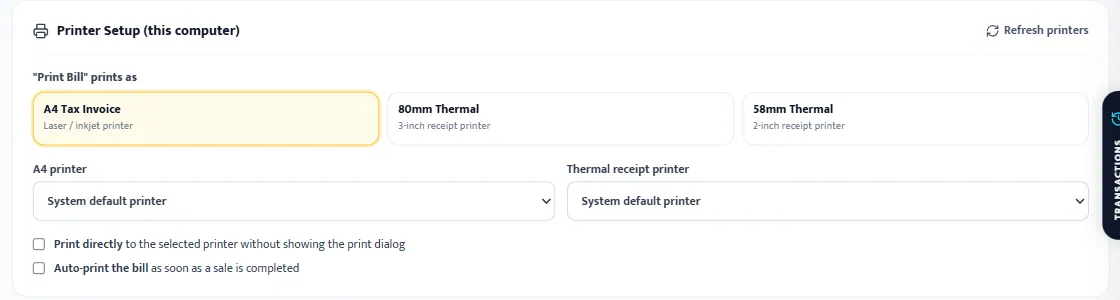
| Setting | What it does | Example |
|---|---|---|
| 1 "Print Bill" prints as | The bill size used by Print Bill and by the counter. | 80mm Thermal |
| 2 A4 printer | The printer for A4 bills, statements and reports. | HP LaserJet |
| 3 Thermal receipt printer | The printer for 58 mm and 80 mm bills. | POS-80 |
| 4 Print directly | Sends prints to the chosen printer without the Windows print window. | On |
| 5 Auto-print the bill | Prints the bill as soon as a sale is completed, while the Sale completed window still opens (for WhatsApp or PDF). | Off |
| 6 Refresh printers | Reads the printer list again. |
Most kirana counters: 80mm Thermal + the receipt printer + Silent ON on the bill. A shop that sends most bills on WhatsApp: leave Silent off and turn on Auto-print the bill, so the bill prints and the WhatsApp button is still there.
A new printer plugged in
KamaiPlus watches the printers installed in Windows.
- No doubt (nothing chosen yet, and one receipt or one label printer): it is chosen by itself and a note says Printer set automatically, with Test print, Change and OK.
- Otherwise a new printer is offered once: New printer found, with Use for bills (or Use for A4 bills / Use for labels), Test print and Not now.
Printer status at the bottom
| Status | Meaning | What to do |
|---|---|---|
| Green, printer name | Bills print on that printer. | Nothing. |
| Amber, No default | No printer chosen and Windows has no default. | Click it and choose the printer. |
| Amber, printer name | Windows' default only saves a file (PDF), or the printer is the wrong kind for the bill size. | Click it; hover to read the reason. |
| Red, Offline | The bill printer is switched off or unplugged. | Check the power and USB cable. The status turns green by itself. |
| Red, Not found | The chosen printer was removed from Windows. | Reinstall it or choose another. |
| Red, None installed | Windows has no printer at all. | Install the printer's driver. |
If something is wrong
- Text cut at the sides: the bill size is wider than the roll. Choose 58 mm instead of 80 mm.
- Very small print on a thermal roll: the bill size is A4. Choose 80 mm or 58 mm.
- A print window opens every time: turn Silent on at the counter, or tick Print directly in Settings.
- Colours missing: thermal printers print in black only. The theme colour shows on A4 bills (Invoice themes).
- Still stuck: Settings → Help & Support → send the problem report on WhatsApp.