
Open Settings
Click Settings at the bottom of the menu on the left. The five tabs are along the top: Store & GST Profile, Features ON / OFF, Invoice & Bill Rules, Data & Reset and Help & Support. Themes and Backup on the right are shortcuts to those screens.
Store & GST Profile
Everything here is printed on your bills. The example below is the demo shop after filling every box.
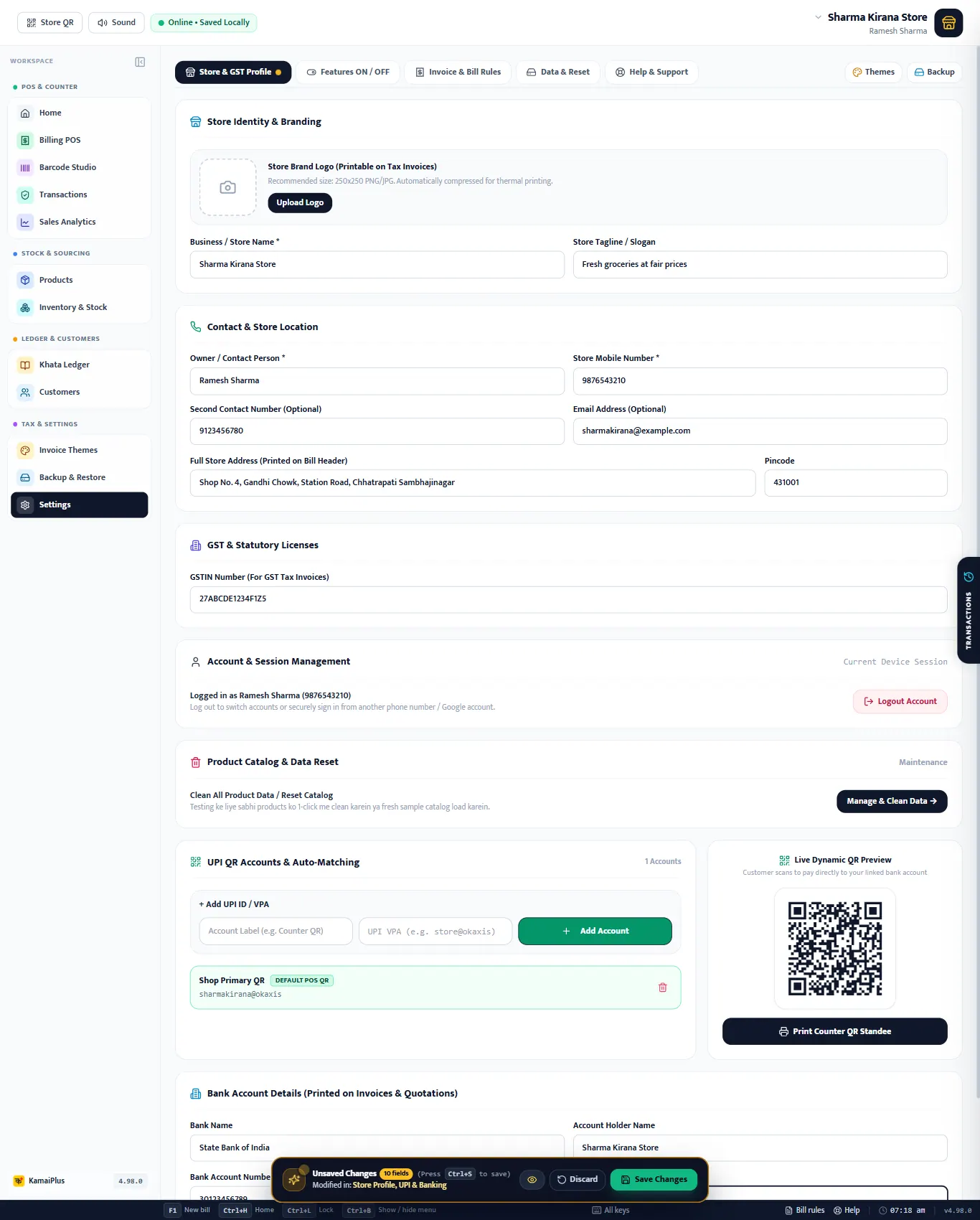
| Field | What it does | Example |
|---|---|---|
| 1Store Brand Logo | Printed on tax invoices; also on the thermal slip in grey. A square image, about 250 × 250, is best. | logo.png |
| 2Business / Store Name * | The name at the top of every bill. | Sharma Kirana Store |
| 3Store Tagline / Slogan | A short line under the name on the bill. | Fresh groceries at fair prices |
| 4Owner / Contact Person * | Printed in the bill header. | Ramesh Sharma |
| 5Store Mobile Number * | The shop's number on bills, receipts and WhatsApp messages. | 9876543210 |
| 6Second Contact Number | Optional. Printed next to the first number. | 9123456780 |
| 7Email Address | Optional. | sharmakirana@example.com |
| 8Full Store Address | Printed in the bill header. | Shop No. 4, Gandhi Chowk, Station Road |
| 9Pincode | Printed with the address. | 431001 |
| 10GSTIN Number | 15 characters. With a GSTIN the bill becomes a tax invoice and shows the place of supply (state code). The app checks the format. | 27ABCDE1234F1Z5 |
| 11UPI QR Accounts | See UPI QR and bank below. | sharmakirana@okaxis |
| 12Live Dynamic QR Preview | The QR your customers scan. Print Counter QR Standee prints it for the counter. | |
| 13Bank Account Details | Bank name, account holder, account number and IFSC, printed on A4 invoices for customers who pay by bank transfer. | State Bank of India · SBIN0001234 |
| 14Save Changes | See Saving changes. | Ctrl + S |
Also on this tab: Account & Session Management (who is logged in, Logout Account) and a link to Manage & Clean Data.
UPI QR and bank
- Under UPI QR Accounts & Auto-Matching, type a label (e.g. Counter QR) and the UPI ID, then Add Account.
- The UPI ID from store setup is already there as Shop Primary QR with the DEFAULT POS QR tag. The counter shows the default one.
- At the counter, choosing UPI / QR shows a QR with the exact bill amount filled in. The customer scans it with Google Pay, PhonePe, Paytm or BHIM.
Sharma Kirana Store uses one UPI ID, sharmakirana@okaxis. A ₹1,479 bill paid by UPI shows a QR for exactly ₹1,479; nobody types the amount.
Saving changes
Changes are not saved one by one. A dark bar appears at the bottom: Unsaved Changes, how many fields, and where.
- Save Changes (or Ctrl + S) saves everything.
- Discard puts the old values back.
- The eye button shows a review of every change, old value and new value, before you save.
- Moving to another tab with unsaved changes asks first: Save & Continue or stay.
Features ON / OFF
Switch off what your shop does not use; the menu, the Home screen and the counter get simpler. Nothing is deleted when a switch is off, and switching it on brings everything back. Changes here apply at once.
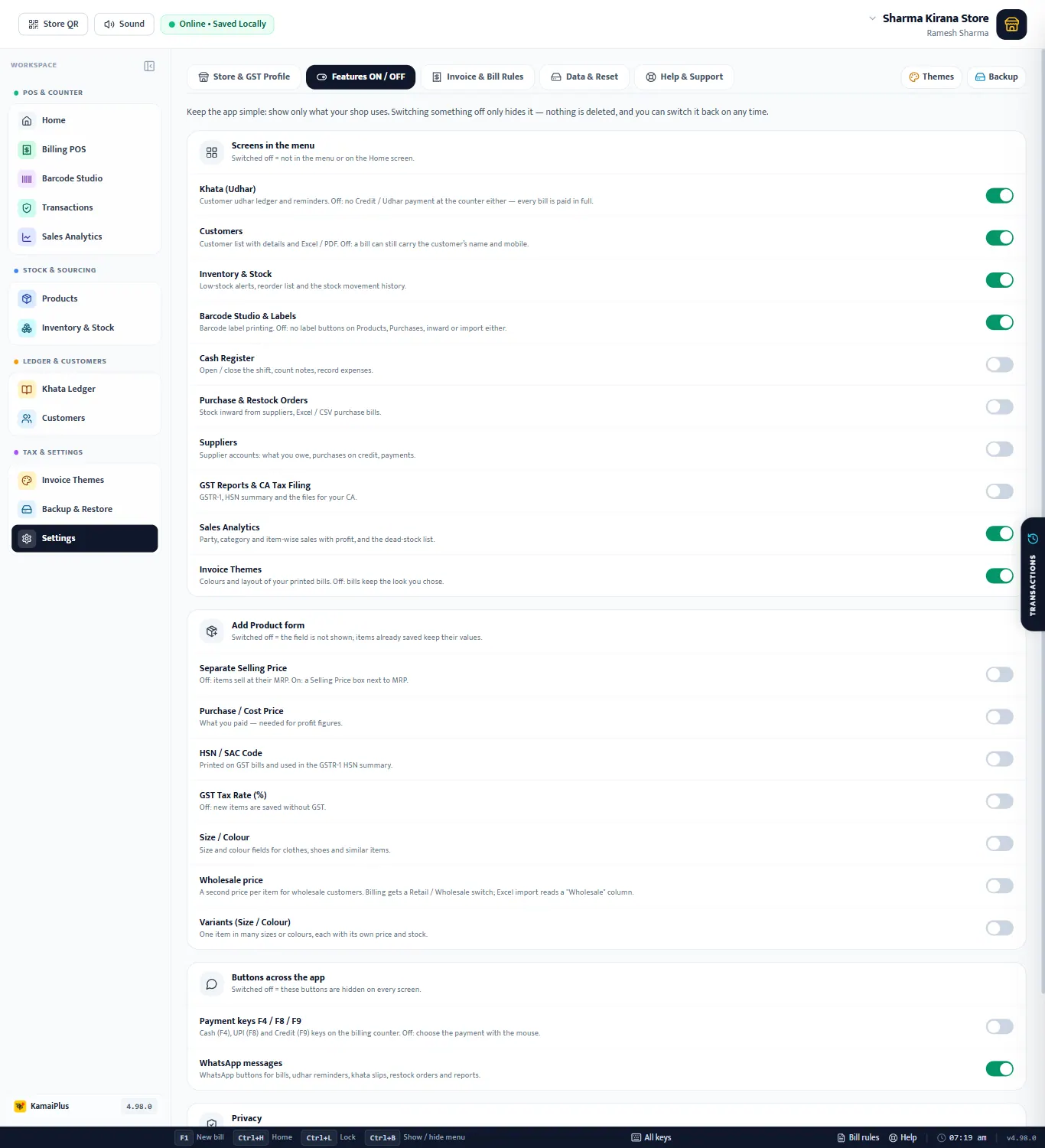
| Switch | What it controls | New shop |
|---|---|---|
| Khata (Udhar) | Customer udhar ledger and reminders. Off: no Credit / Udhar payment at the counter either; every bill is paid in full. | On |
| Customers | Customer list with details and Excel / PDF. Off: a bill can still carry the customer's name and mobile. | On |
| Inventory & Stock | Low-stock alerts, the reorder list and the stock movement history. | On |
| Barcode Studio & Labels | Label printing. Off: no label buttons on Products, Purchases, inward or import. | On |
| Cash Register | Open / close the shift, count notes, record expenses. | Off |
| Purchase & Restock Orders | Stock inward from suppliers, Excel / CSV purchase bills. | Off |
| Suppliers | Supplier accounts: what you owe, purchases on credit, payments. | Off |
| GST Reports & CA Tax Filing | GSTR-1, the HSN summary and the files for your CA. | Off |
| Sales Analytics | Party, category and item-wise sales with profit, and the dead-stock list. | On |
| Invoice Themes | Colours and layout of printed bills. Off: bills keep the look you chose. | On |
| Separate Selling Price | Off: items sell at their MRP. On: a Selling Price box next to MRP. | Off |
| Purchase / Cost Price | What you paid. Needed for profit figures. | Off |
| HSN / SAC Code | Printed on GST bills and used in the GSTR-1 HSN summary. | Off |
| GST Tax Rate (%) | Off: new items are saved without GST. | Off |
| Size / Colour | Size and colour fields for clothes, shoes and similar items. | Off |
| Wholesale price | A second price per item for wholesale customers. Billing gets a Retail / Wholesale switch; Excel import reads a "Wholesale" column. | Off |
| Variants (Size / Colour) | One item in many sizes or colours, each with its own price and stock. | Off |
| Payment keys F4 / F8 / F9 | Cash (F4), UPI (F8) and Credit (F9) keys at the counter. Off: choose the payment with the mouse. | Off |
| WhatsApp messages | WhatsApp buttons for bills, udhar reminders, khata slips, restock orders and reports. | On |
| Hide profit from staff (Privacy PIN) | A "Cashier Privacy" button on every screen; profit and cost prices open only with the owner PIN. | On |
Invoice & Bill Rules
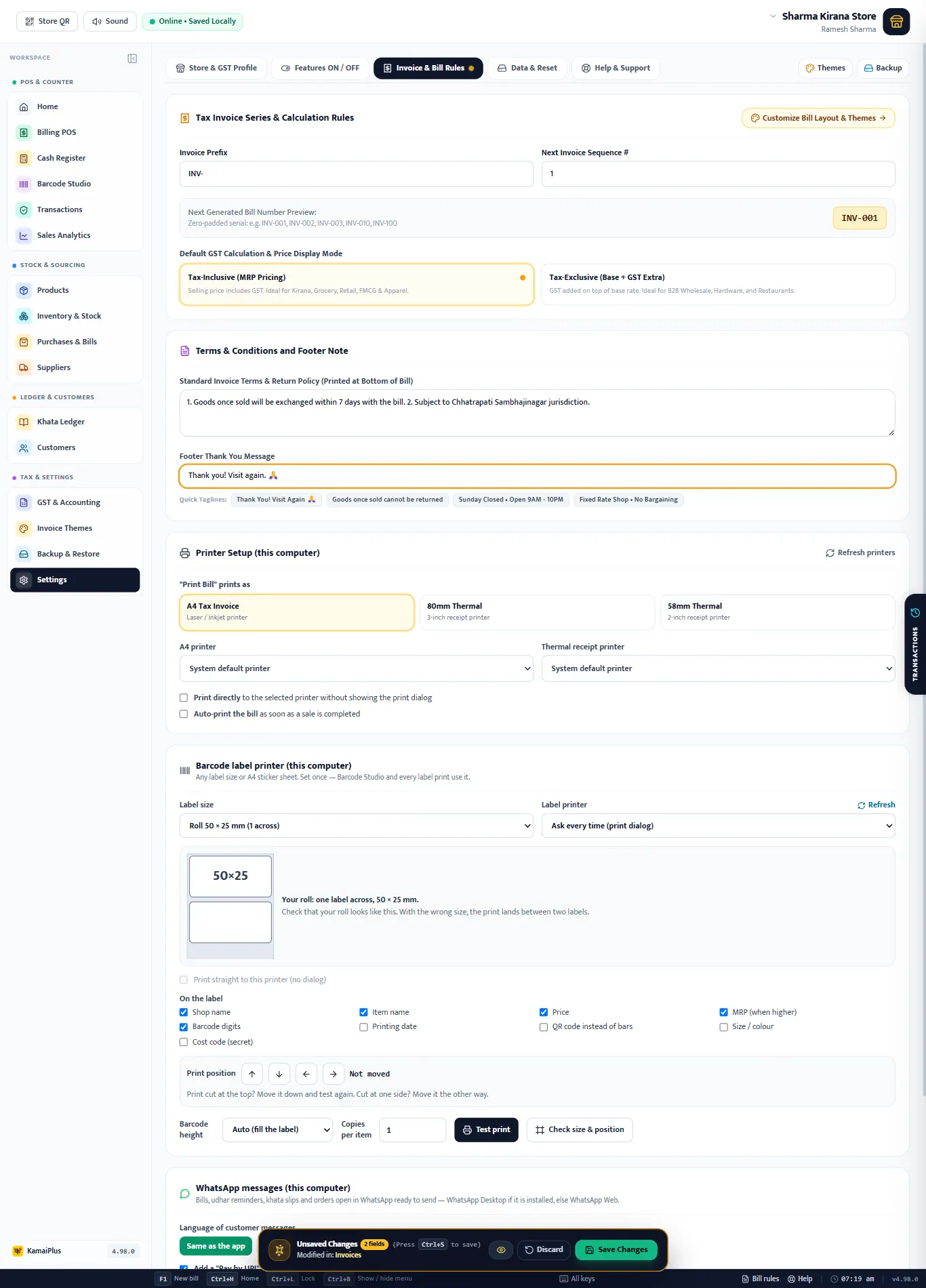
| Setting | What it does | Example |
|---|---|---|
| 1Invoice Prefix | The letters before the bill number. | INV- or BILL- |
| 2Next Invoice Sequence # | The next bill's number. Set it when you move from another software so numbers continue. | 1 |
| 3Next Generated Bill Number Preview | How the next number will look, zero-padded. | INV-001 |
| 4Tax-Inclusive (MRP Pricing) | The selling price already includes GST. For kirana, grocery, retail, FMCG and apparel. | ₹172 incl. 5% GST |
| 5Tax-Exclusive (Base + GST Extra) | GST is added on top of the price. For B2B wholesale, hardware and restaurants. | ₹172 + ₹8.60 GST |
| 6Standard Invoice Terms & Return Policy | Printed at the bottom of the bill. | Exchange within 7 days with the bill. |
| 7Footer Thank You Message | The last line of the bill. The quick taglines below the box fill it in one click. | Thank you! Visit again. 🙏 |
| 8"Print Bill" prints as | A4 Tax Invoice, 80 mm Thermal or 58 mm Thermal, and the printer for each. | 80 mm Thermal |
| 9Print directly / Auto-print | Skip the print window, and print as soon as a sale is completed. Details in Set up the bill printer. | |
| 10Barcode label printer | Label size, printer and what prints on a label. Details in Barcode labels. | Roll 38 × 25 mm (2 across) |
| 11WhatsApp messages | The language of customer messages and the "Pay by UPI" link in them. | Same as the app |
Toor Dal 1 kg sells at ₹172 with 5% GST, tax-inclusive. The bill shows ₹172.00, of which taxable value ₹163.81 and GST ₹8.19, split equally into CGST and SGST for a customer in the same state. The customer pays ₹172.
The printer, label and WhatsApp settings are saved for this computer; a second counter PC keeps its own.
Data & Reset
Shows how many products, categories and stock movements the shop has, and the Product Catalog Reset (Danger Zone): Clean All Product Data removes every item and its stock movements. Sales bills, customers and the khata are kept. Download a backup first; the screen links to the Backup Center.
Help & Support
- KamaiPlus Support: WhatsApp and call +91 86699 97711, in Hindi, Marathi or English.
- The app version, and Get early updates (beta): turn it on only if support asks you to.
- What's new in recent versions.
- Something not working? Send report on WhatsApp sends the app version, Windows version and recent errors to support. It contains no bills, customers or prices.