
See the keys in the app
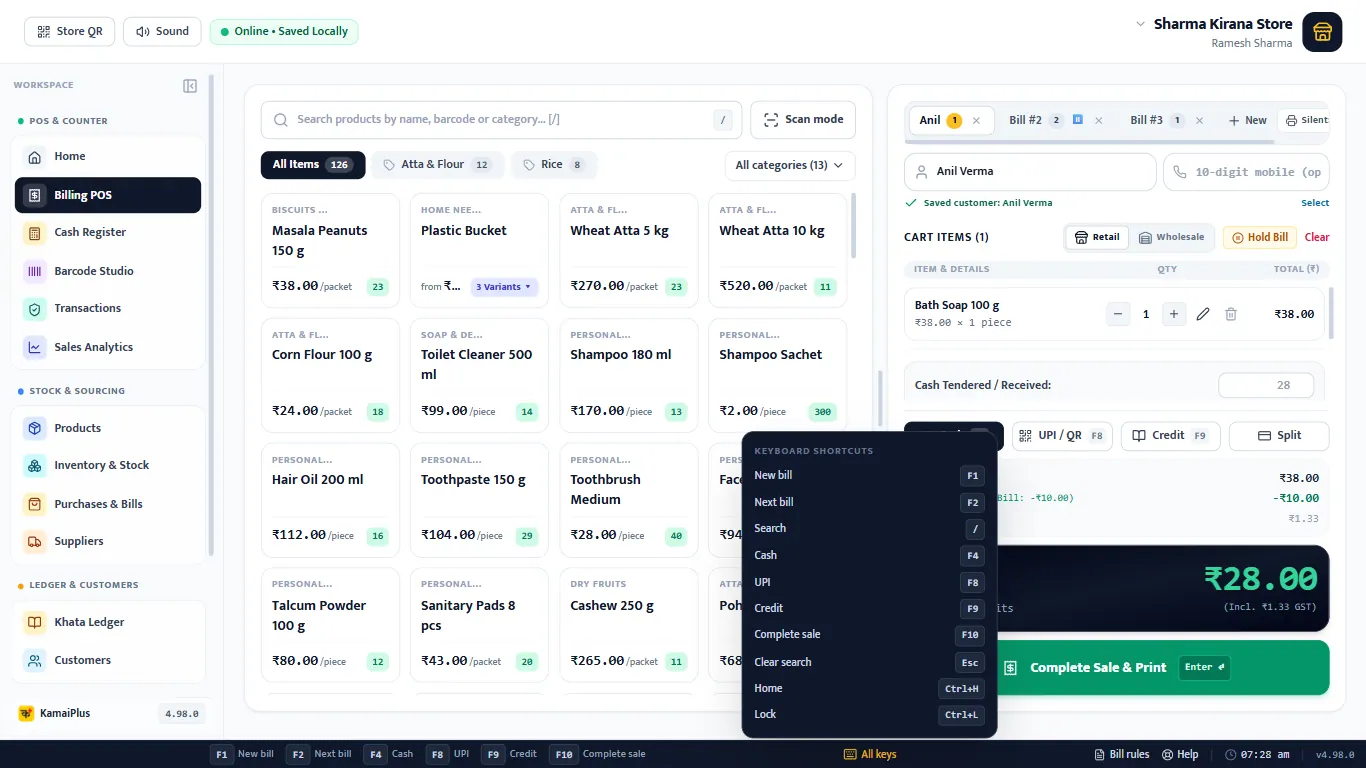
- 1The keys for this screen, in the status bar.
- 2All keys: opens the full list.
- 3The list. Keys that are switched off (payment keys, or F9 when Khata is off) are not shown.
Anywhere in the app
| Key | What it does |
|---|---|
| F1 | New bill: opens Billing POS on a fresh bill, from any screen. |
| Ctrl + H | Home. |
| Ctrl + L | Lock the screen. The master password opens it again, on the same page. |
| Ctrl + B | Show or hide the menu on the left. |
F1 and Ctrl + H do nothing while a window is open, so a half-filled form is never lost.
At the billing counter
| Key | What it does |
|---|---|
| / | Go to the search box. |
| ↑ ↓ | Move through the search results. |
| Enter | Add the scanned or highlighted item. |
| Enter on the empty search box | Finish the bill. |
| F10 | Complete the sale. |
| Esc | Clear the search. |
| F1 | Open a new bill tab (a second customer while the first is still shopping). |
| F2 | Go to the next open bill, or open a new one when only one is open. |
| Ctrl + 1 … Ctrl + 9 | Go to bill tab 1 to 9. |
Payment keys
Off for a new shop, so a stray key never changes the payment. Turn them on in Settings → Features ON / OFF → Payment keys.
| Key | Payment |
|---|---|
| F4 | Cash |
| F8 | UPI / QR |
| F9 | Credit (udhar). Only when Khata is on. |
In windows
| Window | Key | What it does |
|---|---|---|
| New stock + labels | Enter | Next box; on the last box, a new row. |
| New stock + labels | Ctrl + Enter | Save and print the labels. |
| WhatsApp message | Ctrl + Enter | Open WhatsApp with the message. |
| Any window | Esc | Close it. |
A bill with only the keyboard
Example: two customers at once
Scan 3 items → F1 (a second customer's bill) → scan 2 items → F2 (back to bill 1) → Enter on the empty search box: bill 1 done. Bill 2 waits in its tab.
With Silent ON, each Enter also prints the bill and the cursor is ready for the next scan.