
The counter screen
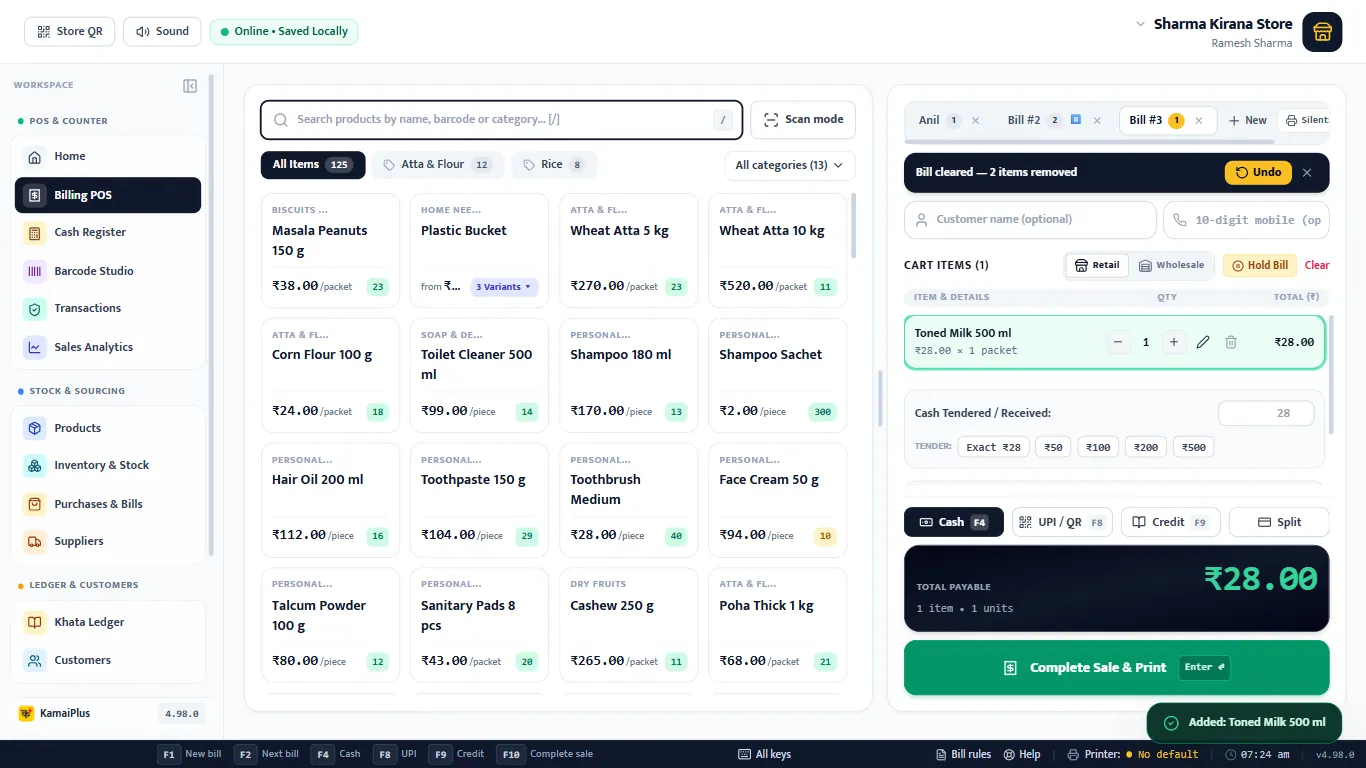
Open Billing POS from the menu, or press F1 on any screen. Items are on the left, the bill on the right. Here is the demo shop's first bill of the day: 8 items, ₹847.
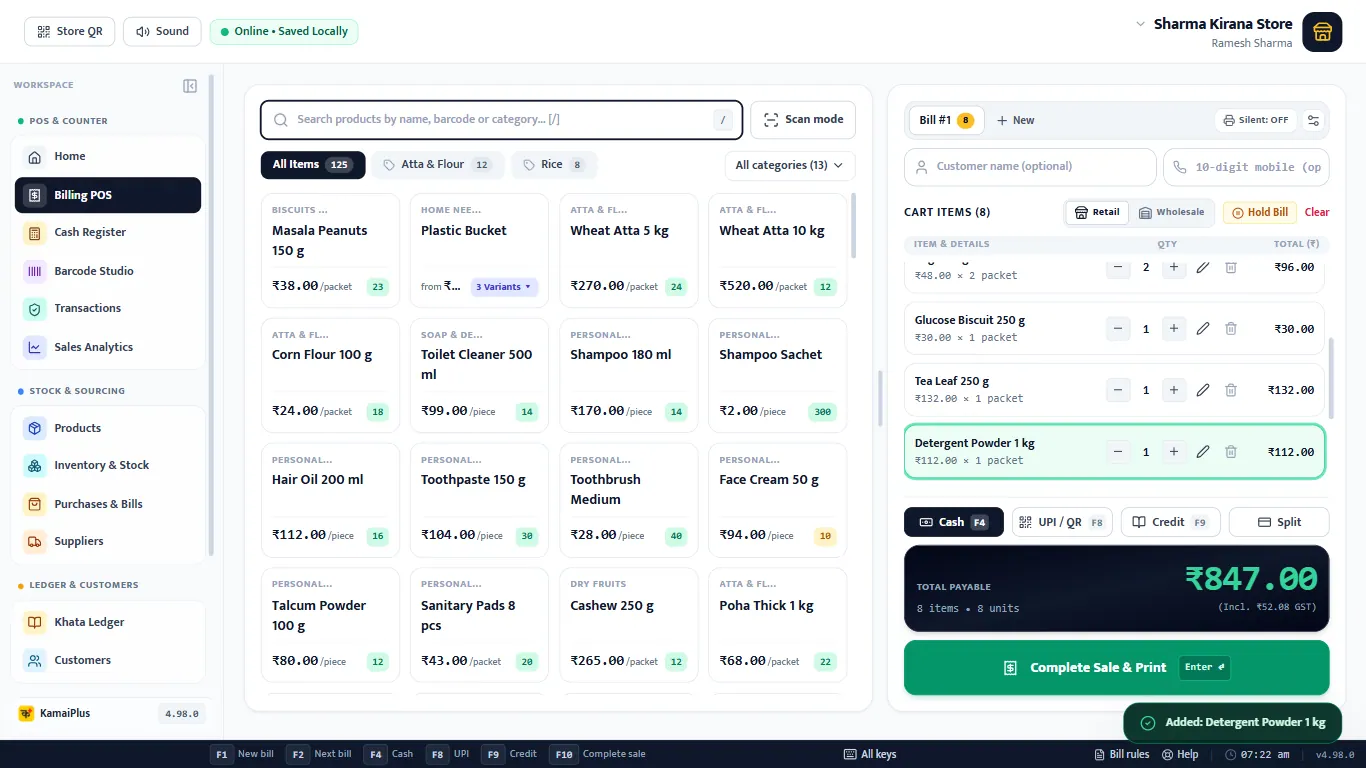
- 1Search box: it always has the cursor, so the barcode gun types here. / jumps back to it.
- 2Scan mode: hides the item grid and shows the last scanned item and the total in big letters, for a counter that only scans.
- 3Category chips: show one section. All categories (13) opens the full list.
- 4Item card: name, price per unit and stock left. A click adds it to the bill. A yellow card is already in the bill.
- 5Bill tabs: Bill #1, + New. See Several bills at once.
- 6Silent and the ⚙ gear: printer and "print straight away". See Set up the bill printer.
- 7Customer name and mobile: optional, except for udhar.
- 8Retail / Wholesale (with the wholesale price switched on), Hold Bill and Clear.
- 9Bill lines: − and + for quantity, ✏️ to change it, 🗑 to remove.
- 10Payment: Cash, UPI / QR, Credit (udhar), Split.
- 11Total payable, how many items and units, and the GST inside it.
- 12Complete Sale & Print, or Enter on the empty search box, or F10.
- 13The status bar lists the keys that work right now.
Find and add items
Four ways, and they can be mixed in one bill:
- Scan the barcode with a USB gun. The item is added and the box is cleared for the next scan.
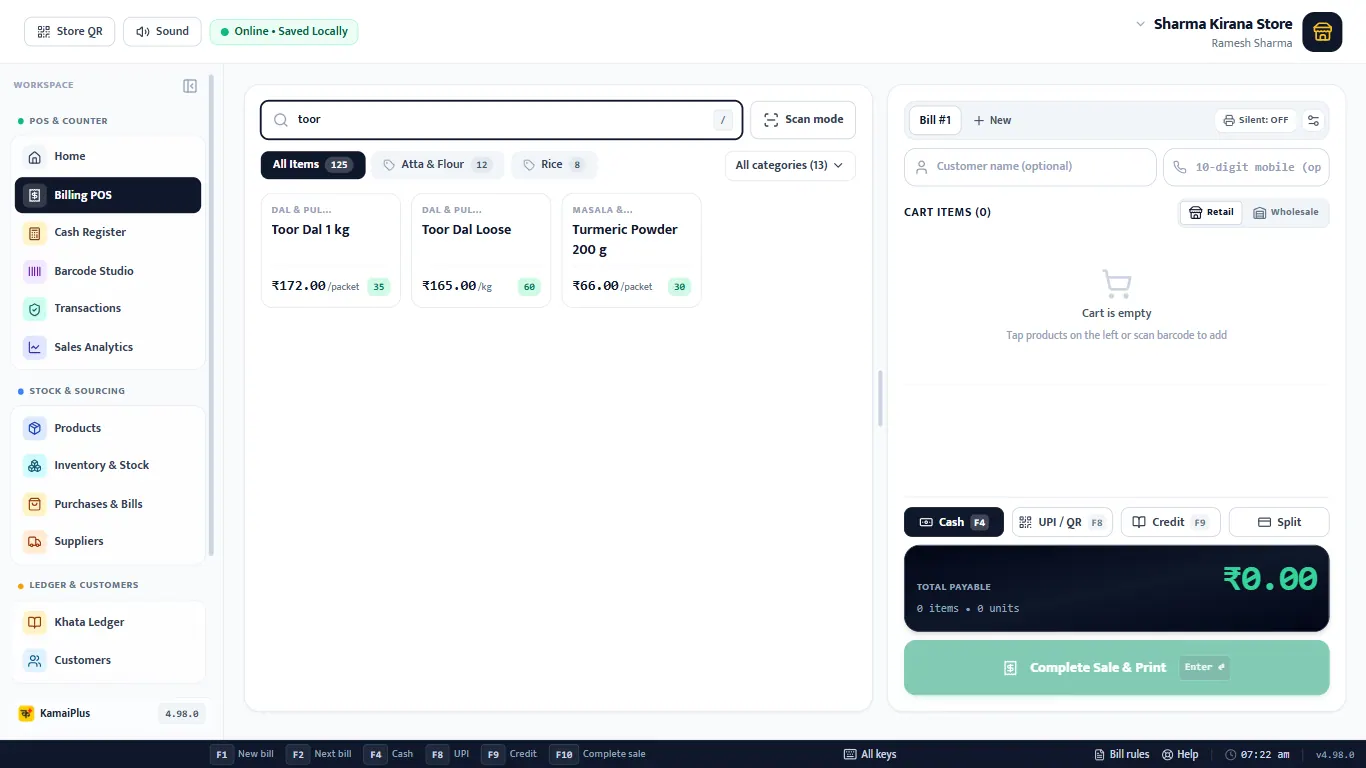
- Type part of the name and press Enter for the first match. Typing toor shows Toor Dal 1 kg, Toor Dal Loose and Turmeric Powder.
- Type in English for Hindi or Marathi names: chawal finds चावल, chaurasa finds चौरसा.
- Click an item card, after choosing a category chip if you like.
Change quantity or price
- − and + change the quantity by one. Scanning the same item again also adds one.
- ✏️ opens Edit Item: quantity, unit price and a discount for this line only, with the amount shown live. Update Line Item saves it.
- 🗑 removes the line. Removed something by mistake? An Undo bar stays for 8 seconds. The same goes for Clear and closing a bill tab.
Loose goods by weight
Items sold per kg, litre or metre can be sold in parts. Items sold per piece or packet stay whole numbers.
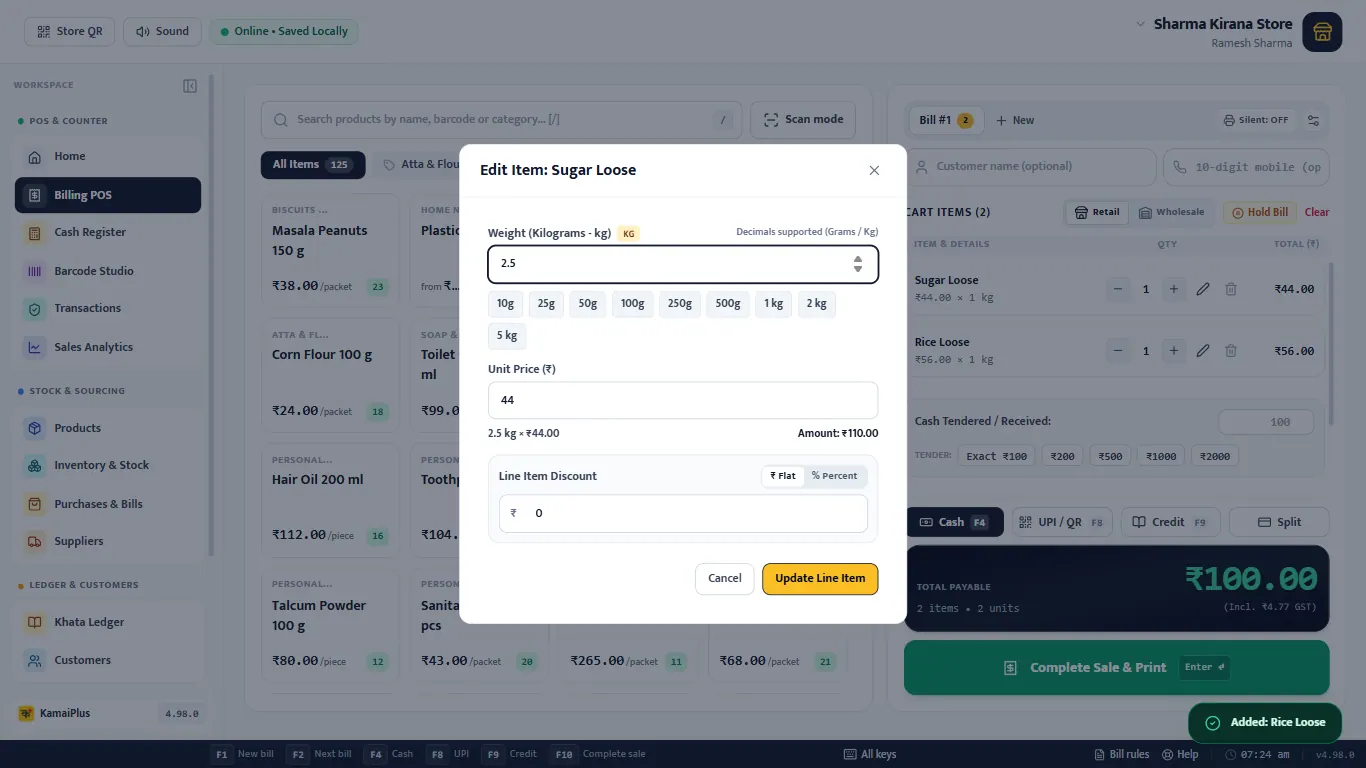
| Box | What to do | Example |
|---|---|---|
| 1Weight (Kilograms - kg) | Type the weight; decimals are fine. | 2.5 |
| 2Quick chips | 10g to 5 kg in one click. A box or dozen gets ¼ ½ ¾ chips instead. | 500g = 0.5 |
| 3Unit Price (₹) | Price per kg. Change it for this bill only if needed. | 44 |
| 4Amount | Worked out live: weight × price. | ₹110.00 |
| 5Line Item Discount | ₹ Flat or % Percent, on this line only. | 0 |
| 6Update Line Item | Puts it on the bill. |
Discount
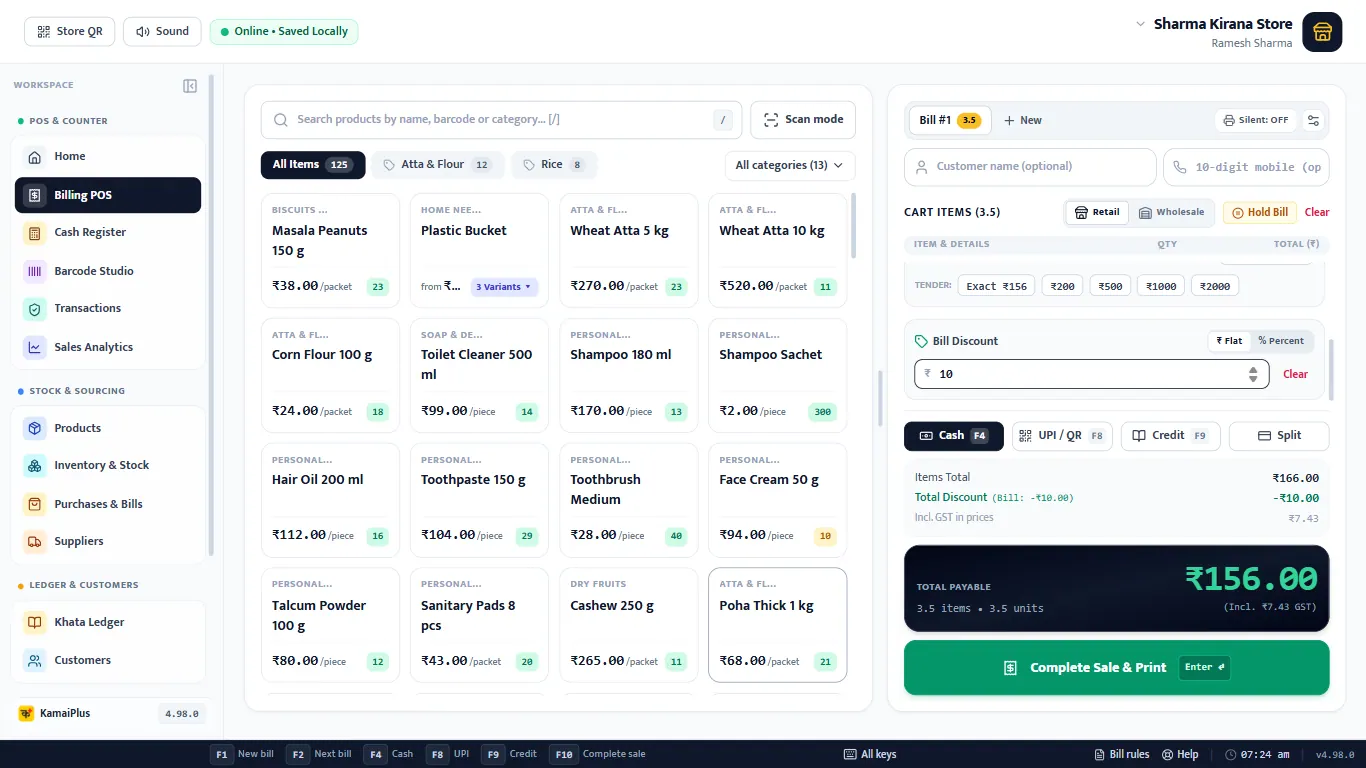
Below the bill lines is Bill Discount: choose ₹ Flat or % Percent and type it. The bill then shows Items Total, Total Discount and the GST inside the new total. The GST is worked out on the price after the discount, so the GST report stays right.
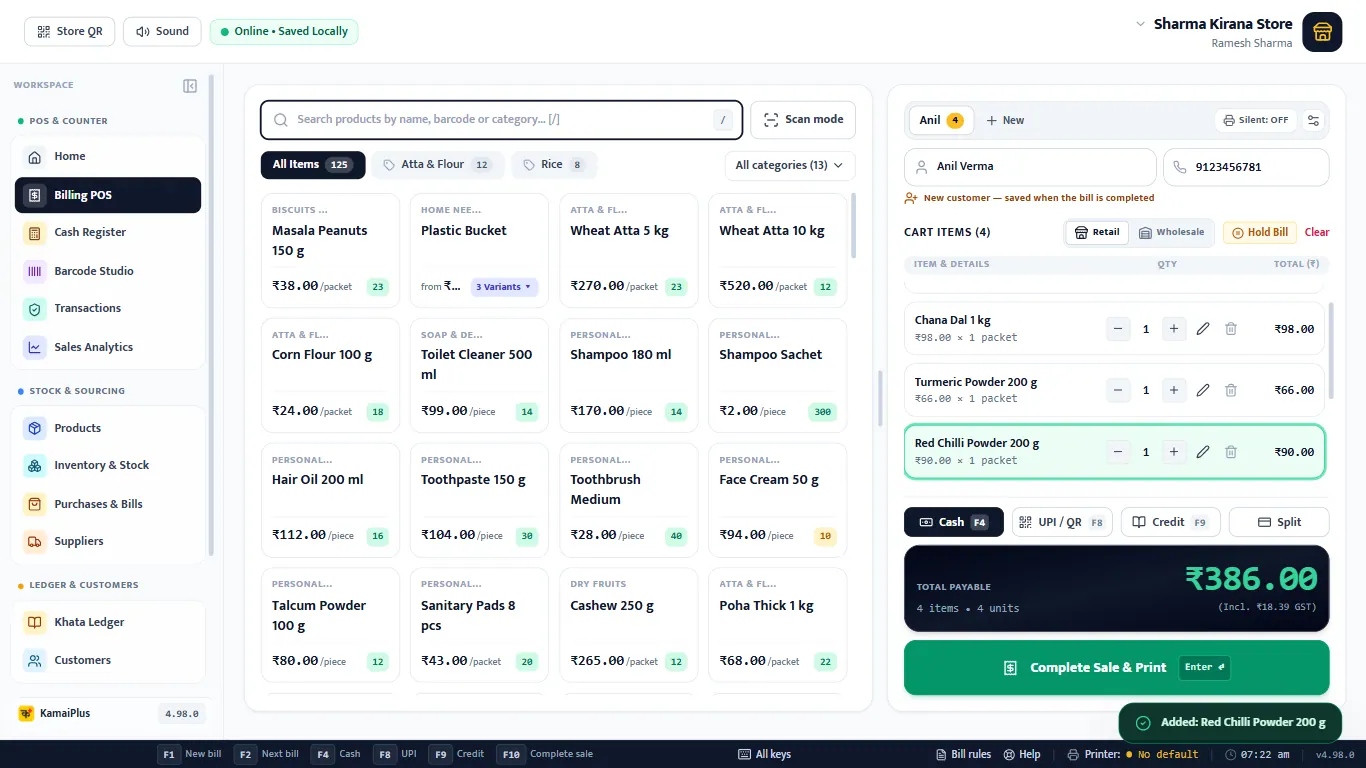
Customer on the bill
Type a name and a 10-digit mobile in the row above the bill. A new customer is saved when the bill is completed ("New customer — saved when the bill is completed"); a saved one is suggested as you type. The bill, the customer's visit count and WhatsApp all use it.
How the customer pays
Cash
The default. Cash Tendered / Received takes what the customer handed over; the chips (Exact, ₹100, ₹200, ₹500…) fill it in one click and the app shows the change to return.
UPI / QR
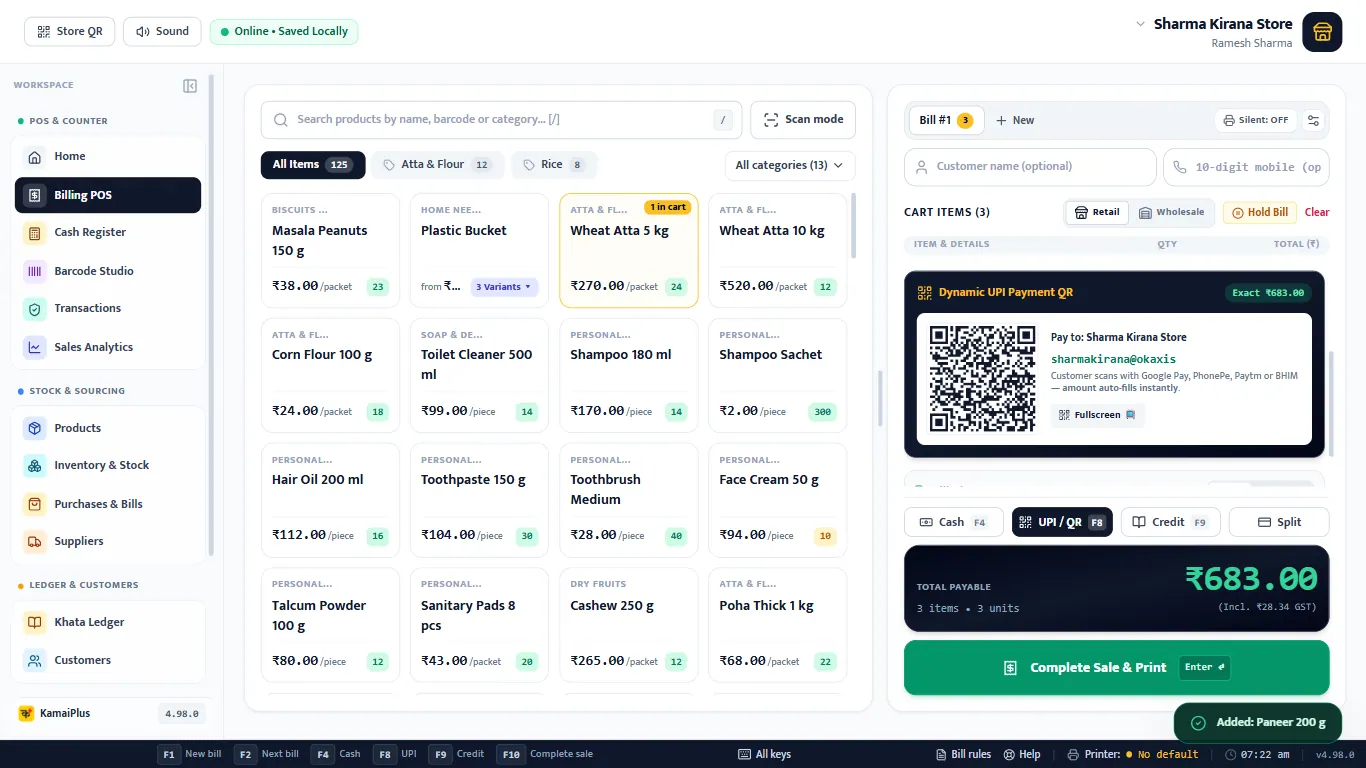
- 1The customer scans the QR with Google Pay, PhonePe, Paytm or BHIM. The amount fills itself.
- 2Exact shows the amount in the QR.
- 3Fullscreen shows the QR big, to turn the screen towards the customer.
Check the payment on your phone, then complete the sale. No UPI ID saved yet? Add one in Settings.
Credit (udhar)
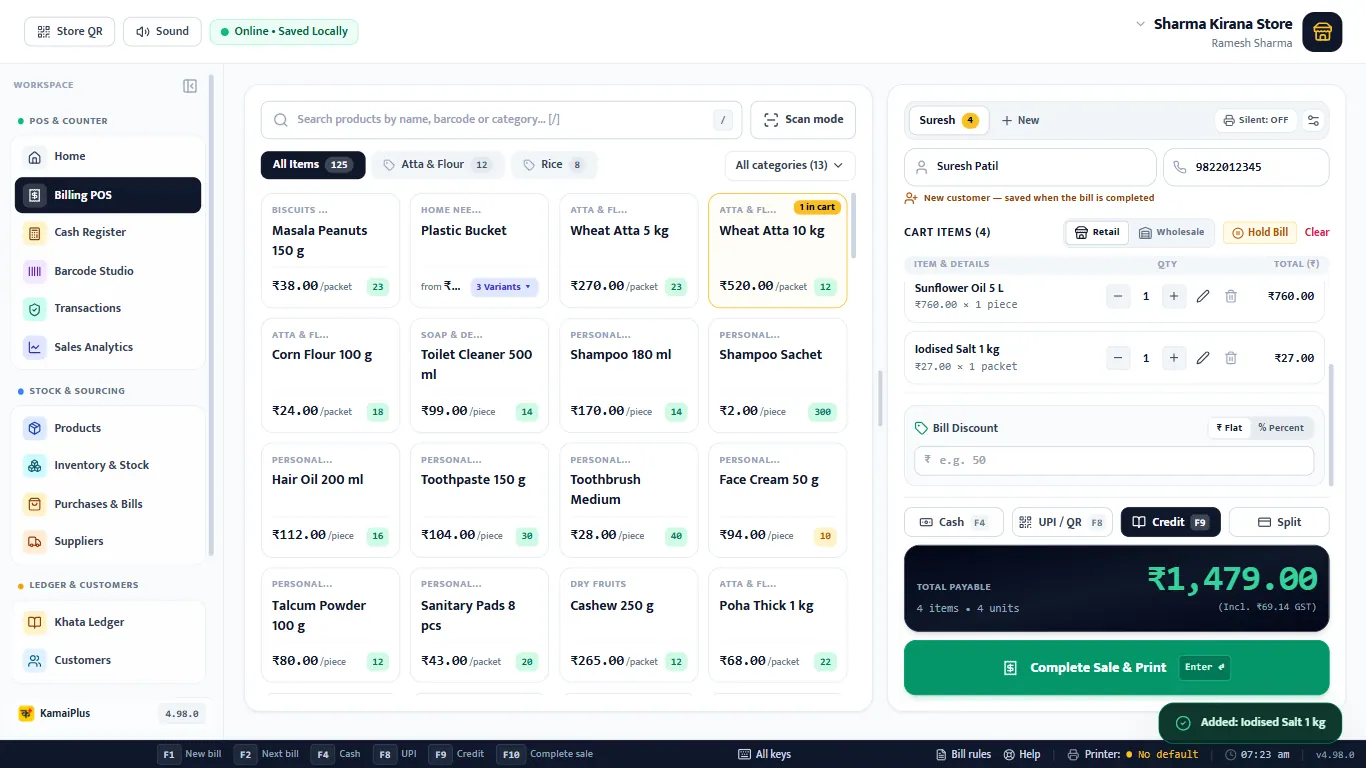
Choose Credit. The bill needs a customer name; the cursor jumps to the name box. The full amount goes to the customer's khata.
Split
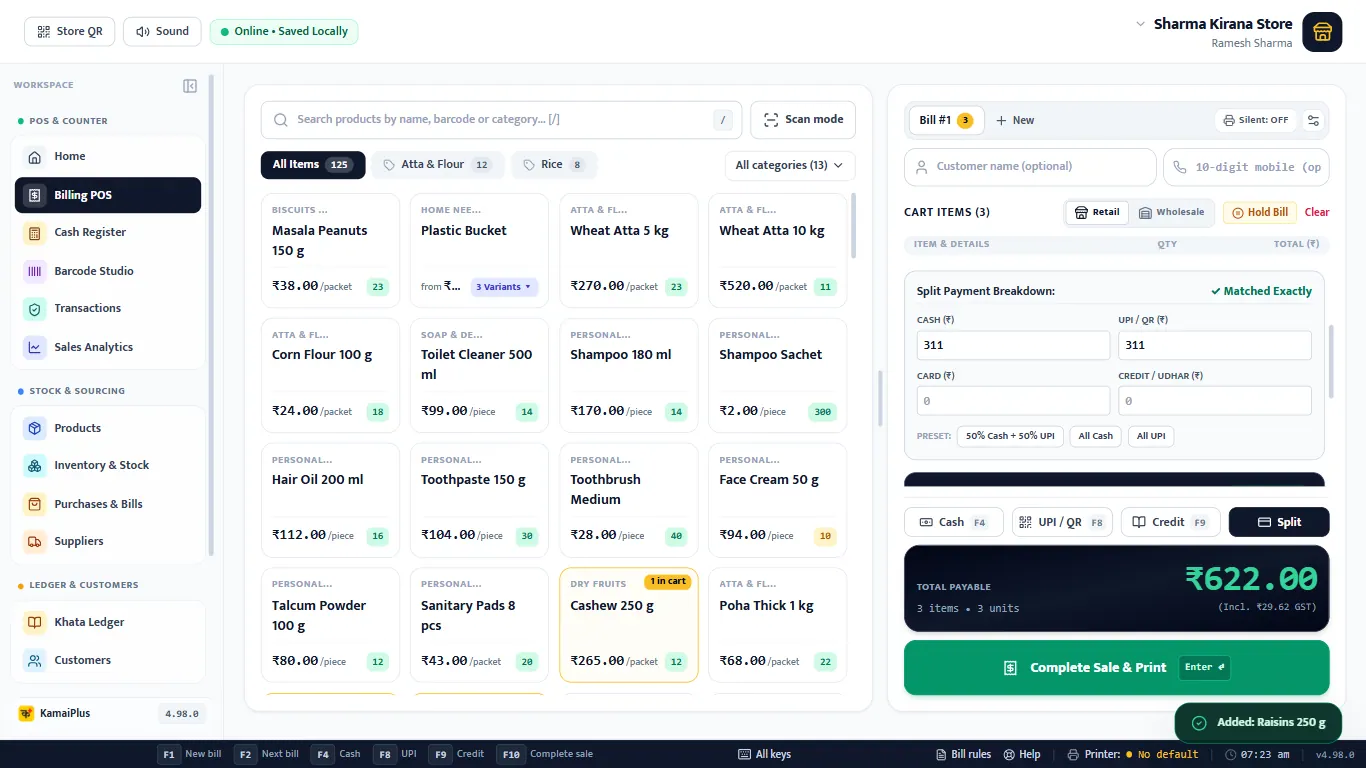
Part cash, part UPI, card or udhar. Split Payment Breakdown starts at half cash, half UPI; change the boxes or use a preset. It says ✓ Matched Exactly, or how much is remaining or over.
Complete the sale
Click Complete Sale & Print, press Enter on the empty search box, or F10. A quick double click still makes one bill, never two. Stock goes down at once, and an udhar bill is added to the khata.
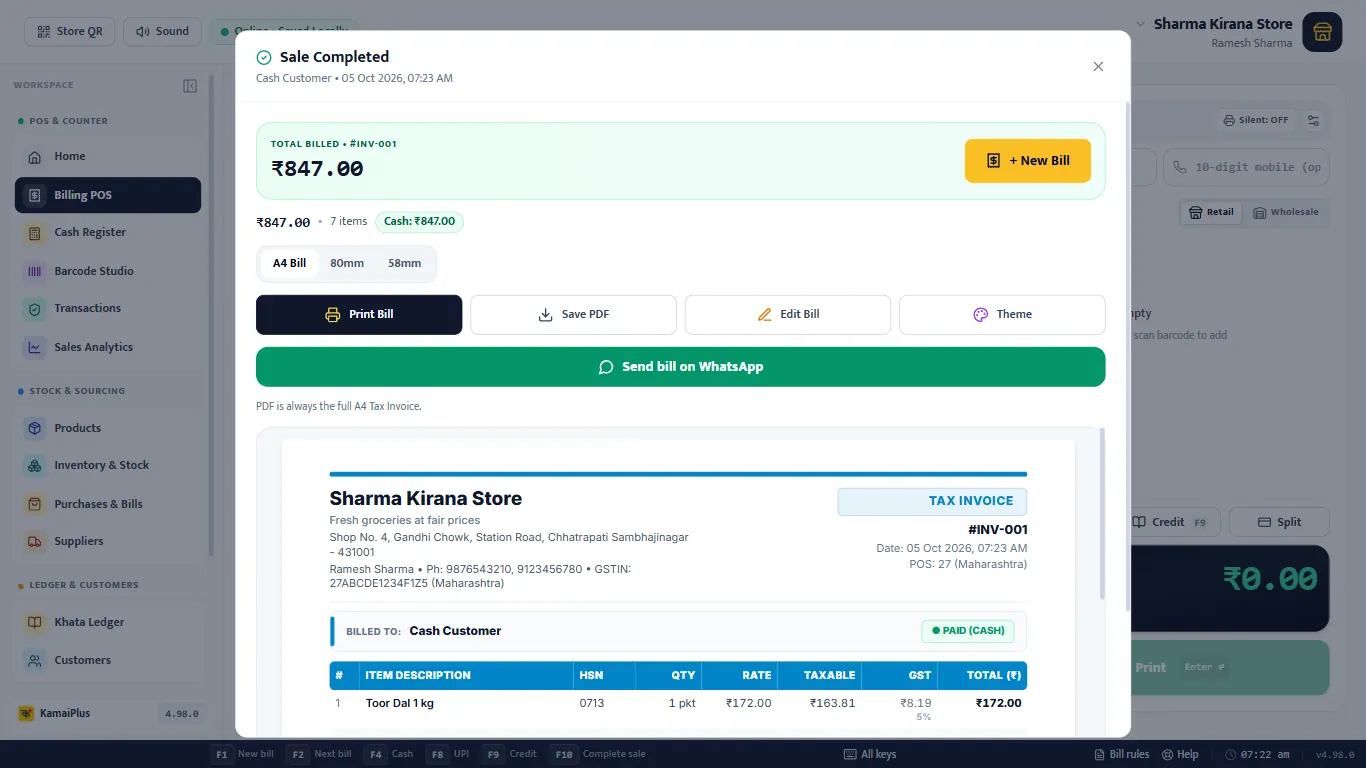
- 1The bill number and total, how many items and how it was paid.
- 2+ New Bill closes this window. Scanning the next customer's first item also closes it and starts the next bill.
- 3A4 Bill / 80mm / 58mm: the size for this print.
- 4Print Bill.
- 5Save PDF: always the full A4 tax invoice.
- 6Edit Bill: fix a mistake now (see Edit a bill).
- 7Theme: how bills look (see Invoice themes).
- 8Send bill on WhatsApp: the items, total and, for udhar, the balance with a "Pay by UPI" link. You can also save the PDF to attach.
INV-001, cash customer, 8 items: Toor Dal 1 kg ₹172, Sunflower Oil 1 L ₹155, Basmati Rice 1 kg ₹150, Sugar 1 kg × 2 ₹96, Glucose Biscuit ₹30, Tea Leaf 250 g ₹132, Detergent Powder 1 kg ₹112. Total ₹847.00, of which ₹52.08 GST (5% on food, 18% on detergent). On the tax invoice each line shows its HSN, taxable value and GST.
Print straight away (peak hour)
With Silent on (the ⚙ next to it sets the printer), Enter saves the bill and prints it with no window, and the cursor is ready for the next scan. The counter never waits for the printer. If the printer is off or out of paper, the bill is still saved and waits in a red bar with Print again.
Several bills at once
A customer forgot something and went back to the shelf? Keep the bill open and serve the next one.
- F1 or + New opens a new bill tab; F2 moves to the next open bill.
- Hold Bill parks a bill; it is kept even when the app is closed.
- A tab takes the customer's name once one is typed.
Keys at the counter
| Key | What it does | |
|---|---|---|
| / | Go to the search box | |
| Enter | Add the scanned or first item; on an empty box, complete the bill | |
| F10 | Complete the sale | |
| F1 · F2 | New bill · next open bill | |
| F4 · F8 · F9 | Cash · UPI · Credit, when Payment keys is on in Settings → Features | |
| Esc | Clear the search box |
All keys of the app: Keyboard shortcuts.
If something is wrong
- The scan types into the wrong box: click the search box once, or press /.
- "Udhar needs a name": type the customer's name before choosing Credit.
- No UPI QR: add the shop's UPI ID in Settings → Store & GST Profile.
- Wrong price on a bill already made: Transactions → ✏️ on that bill, see Find, edit and return bills.
- Nothing prints: see Set up the bill printer.